How to migrate from QuickBooks Desktop

Issue with this page images? visit our Notion Page
To migrate from QuickBooks Desktop to Wesley, you need two files:
- Chart of Accounts
- Journals
In this post, we will guide you through the migration process so you can follow along.
Chart of Accounts
Chart of account lets you use your account system in Wesley.
-
On you QuickBooks Desktop, Click
Chart of Accounts in List Menu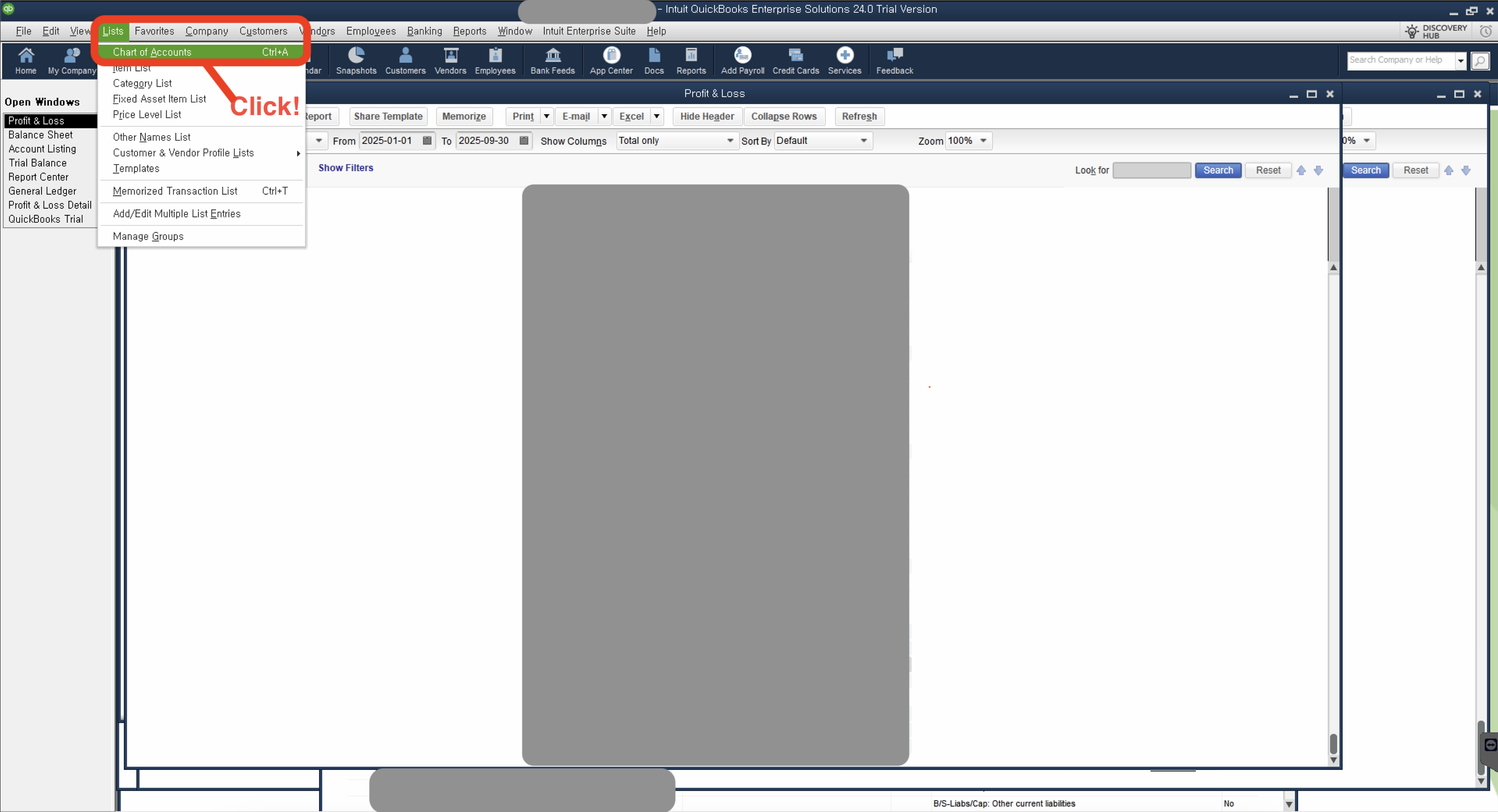
-
Click
Account Listing in Reports section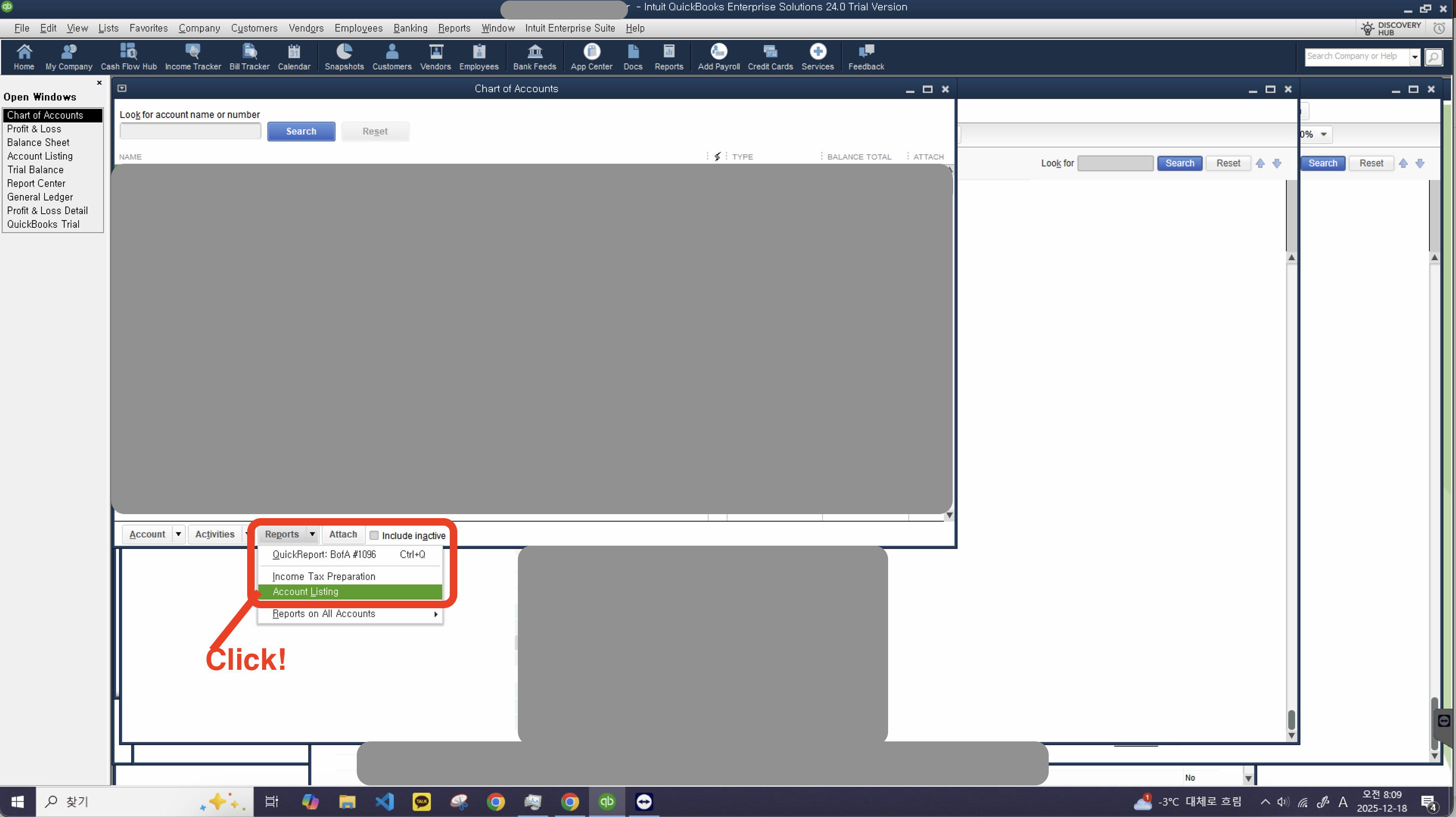
-
Click
Customize Report in Sub Menu Section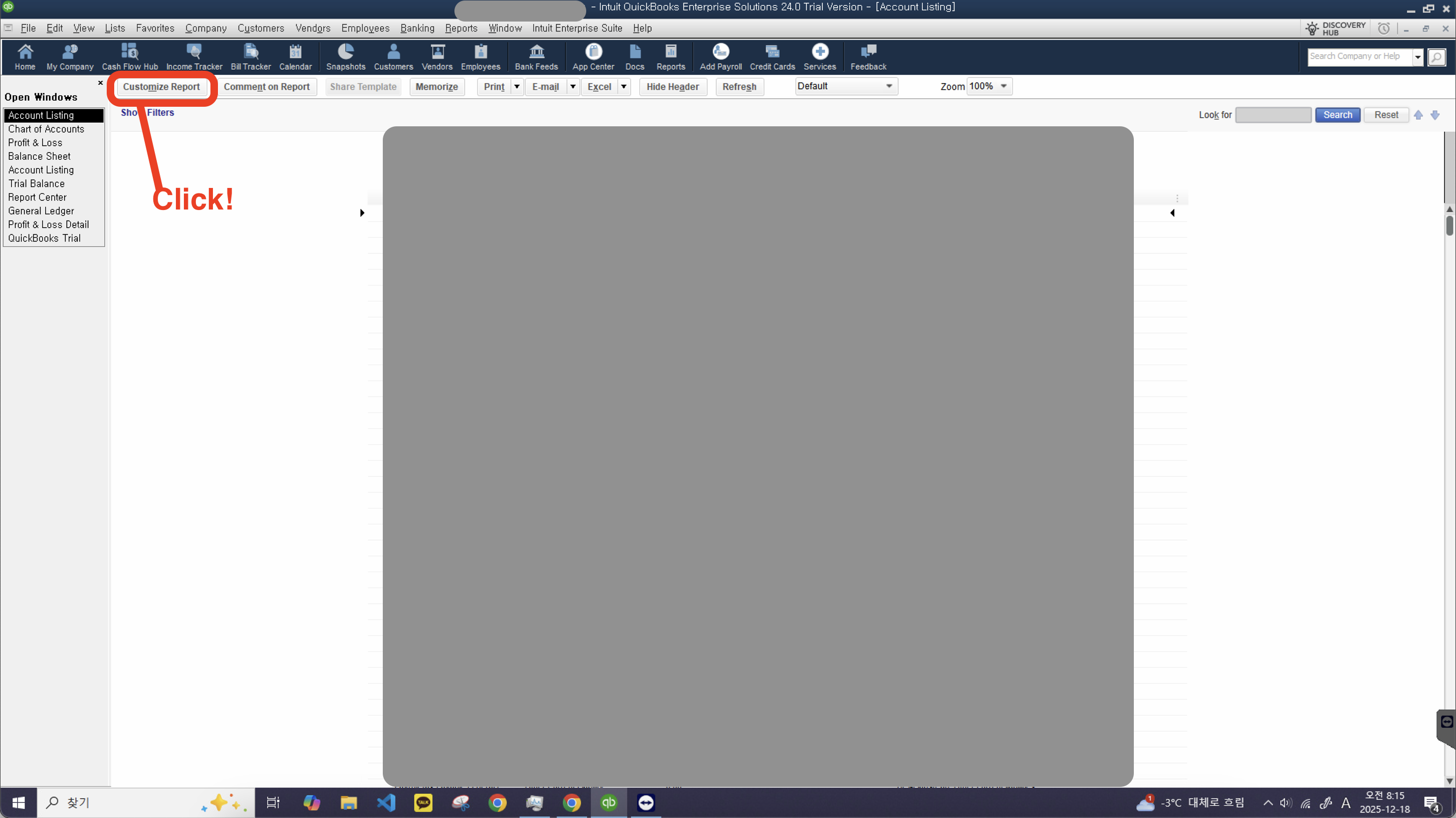
-
Among default chart of account columns,
add Account #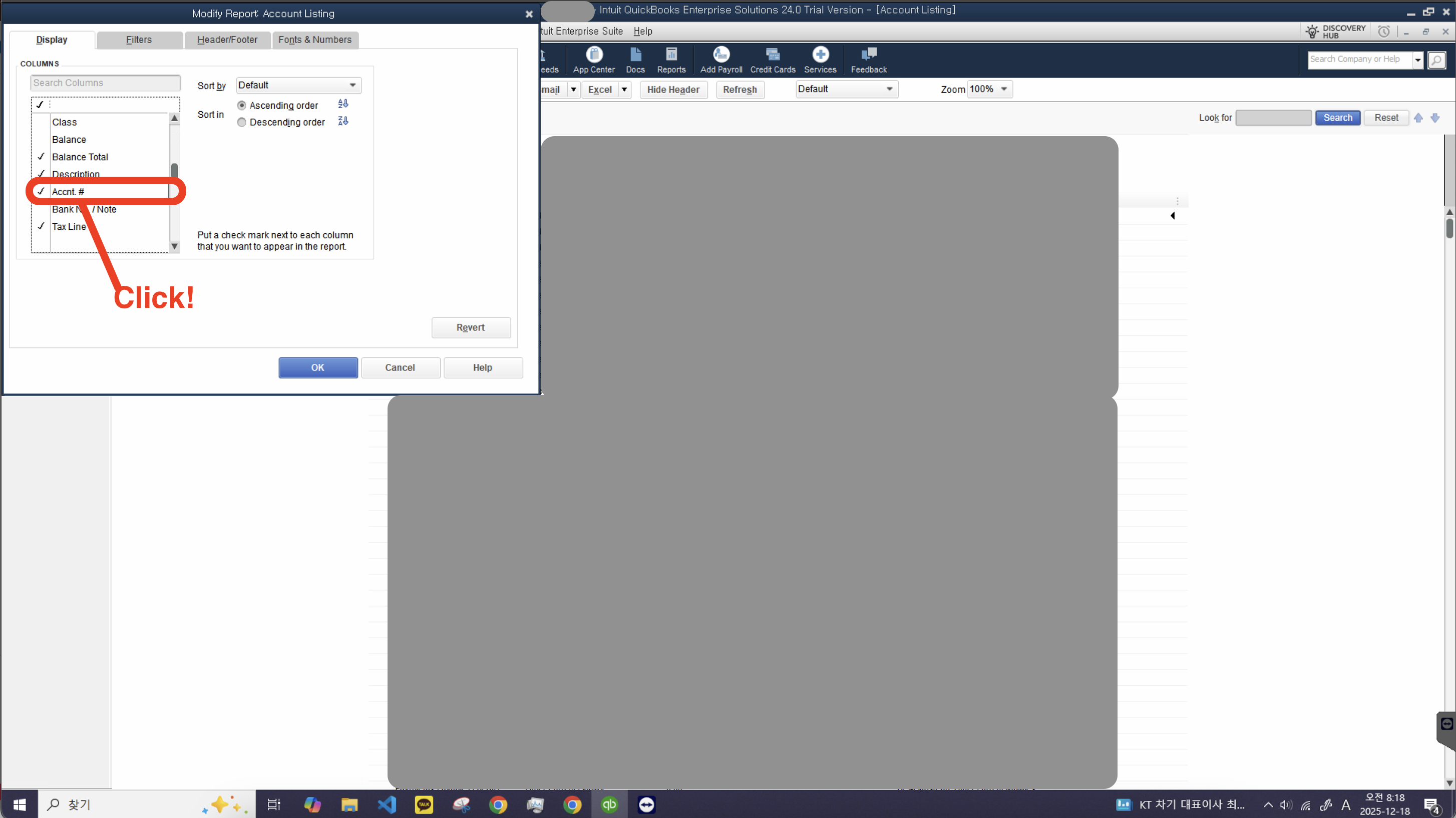
-
Click
Filters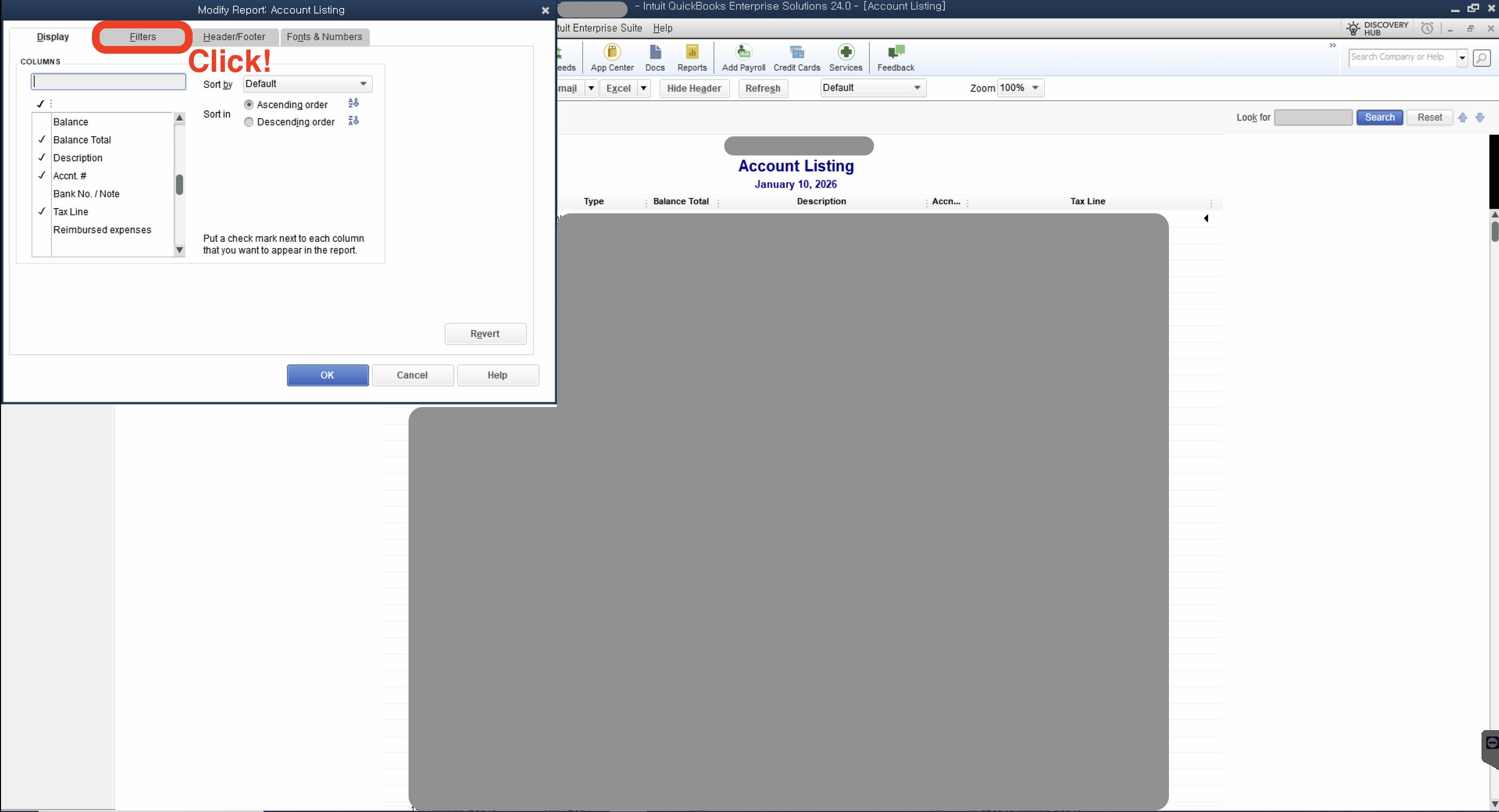
-
Under Active Status, click
AllCaution! You MUST click All Active Status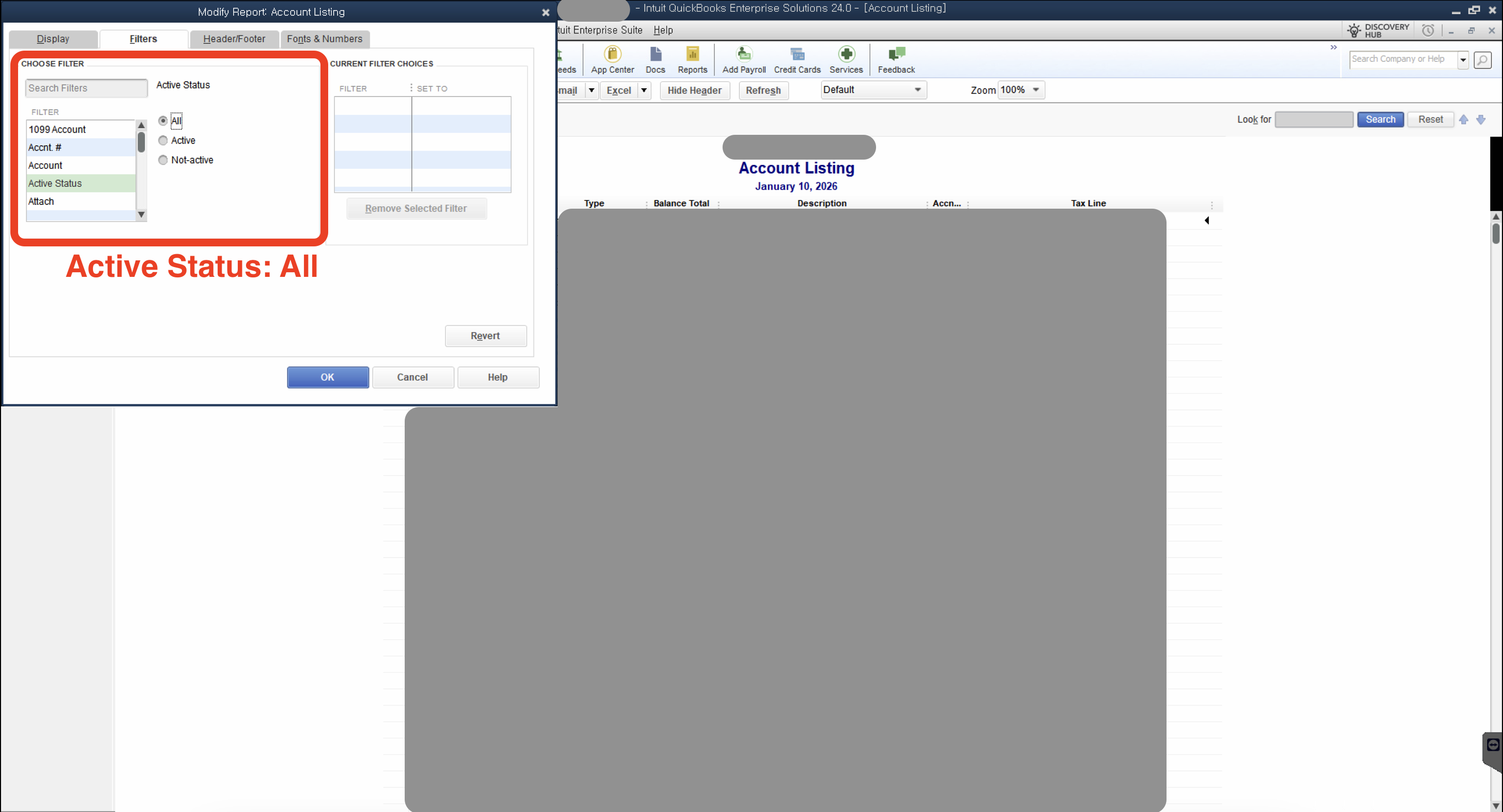
-
Click
OK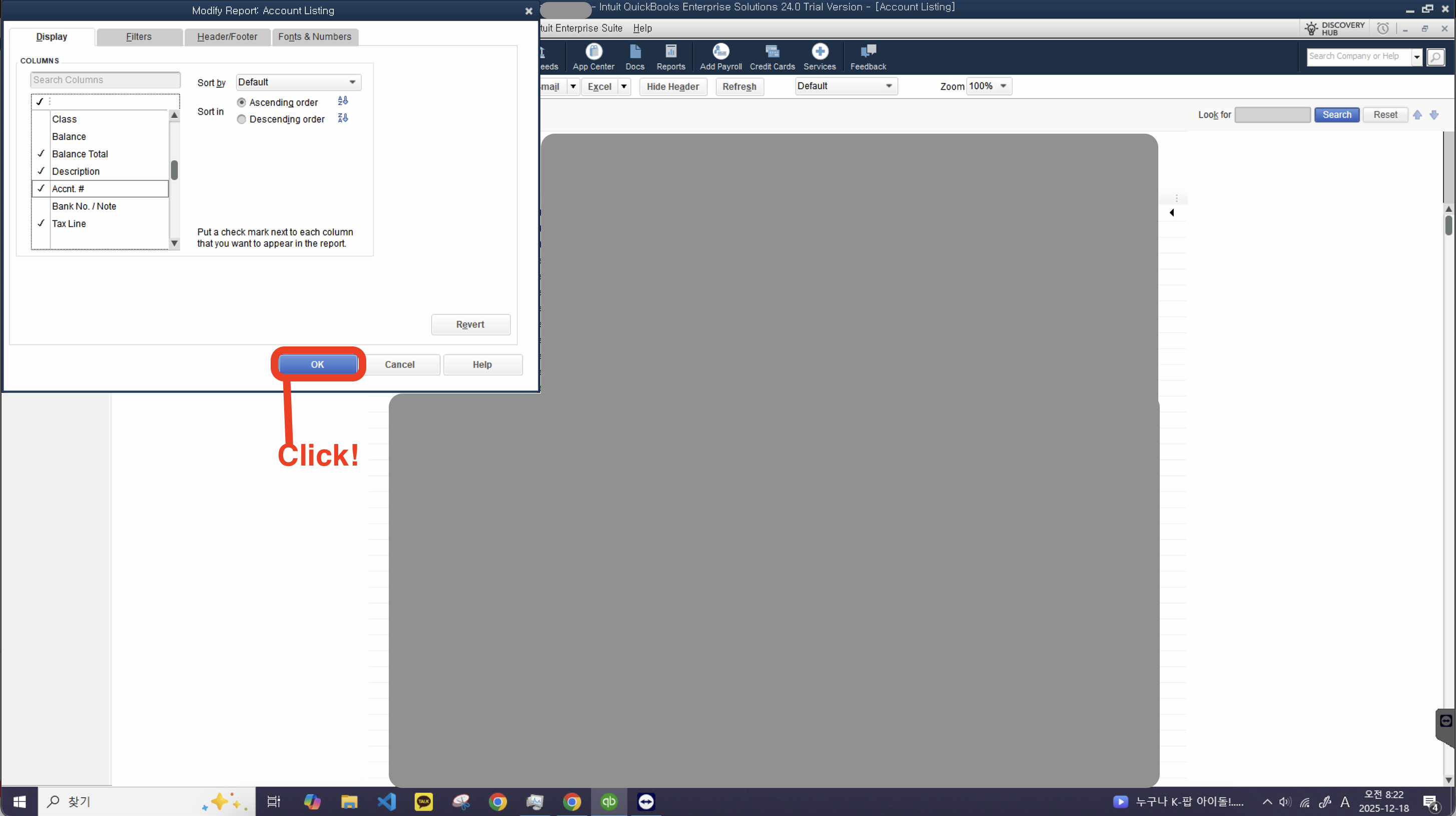
-
Click
Create New Worksheet in Excel in Sub Menu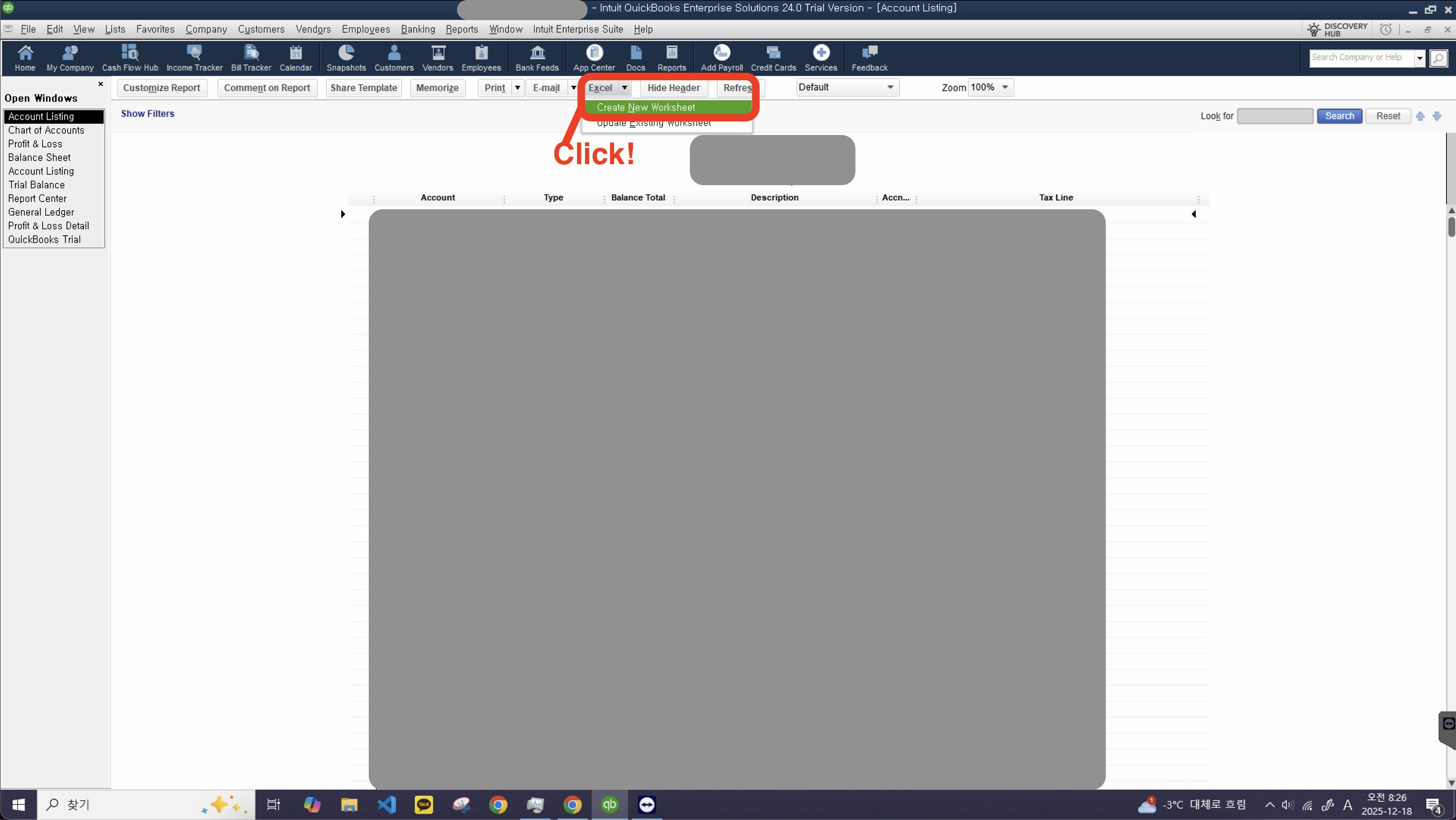
-
Click
Create a comma separated values(.csv) file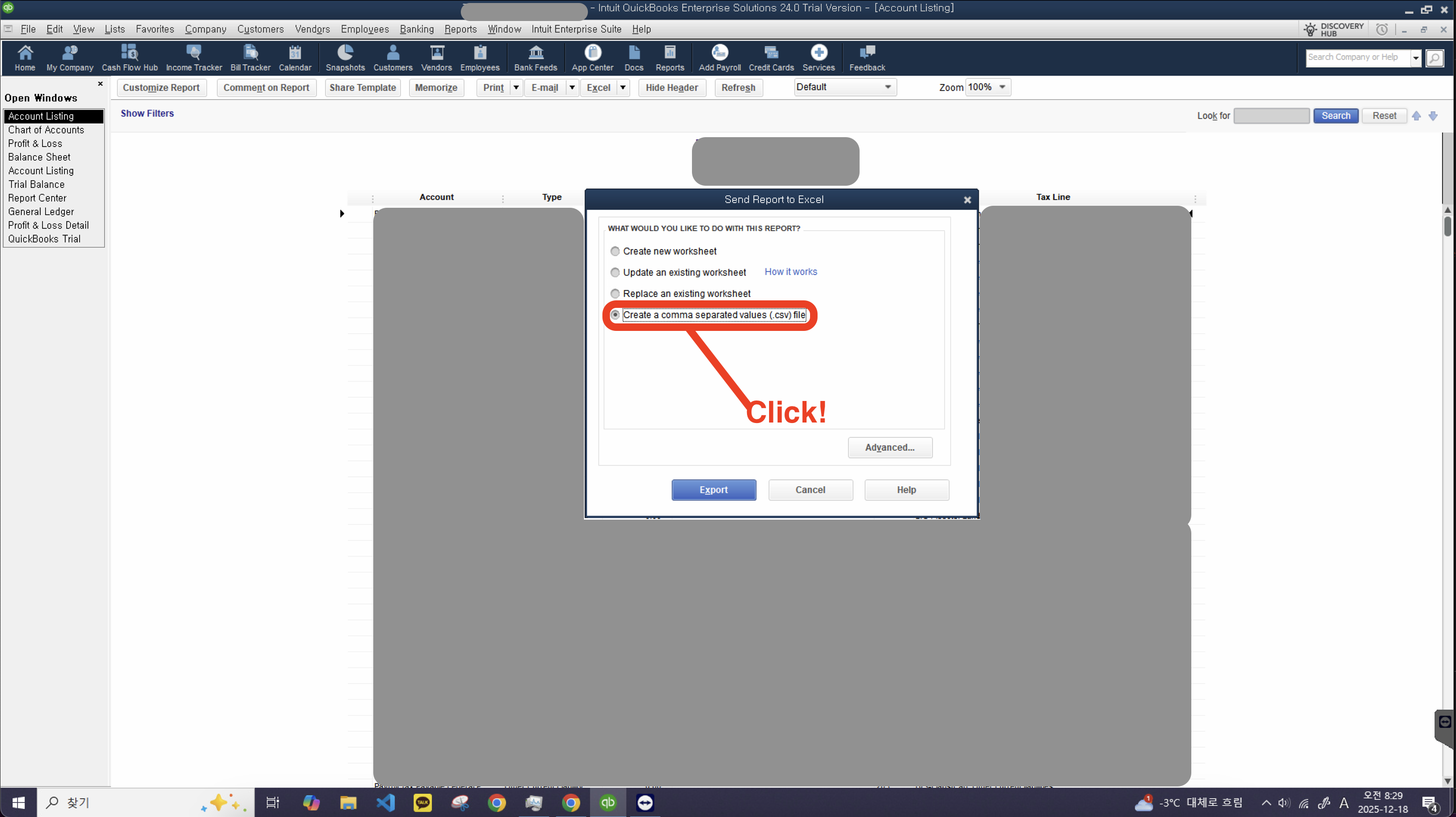
-
Click
Export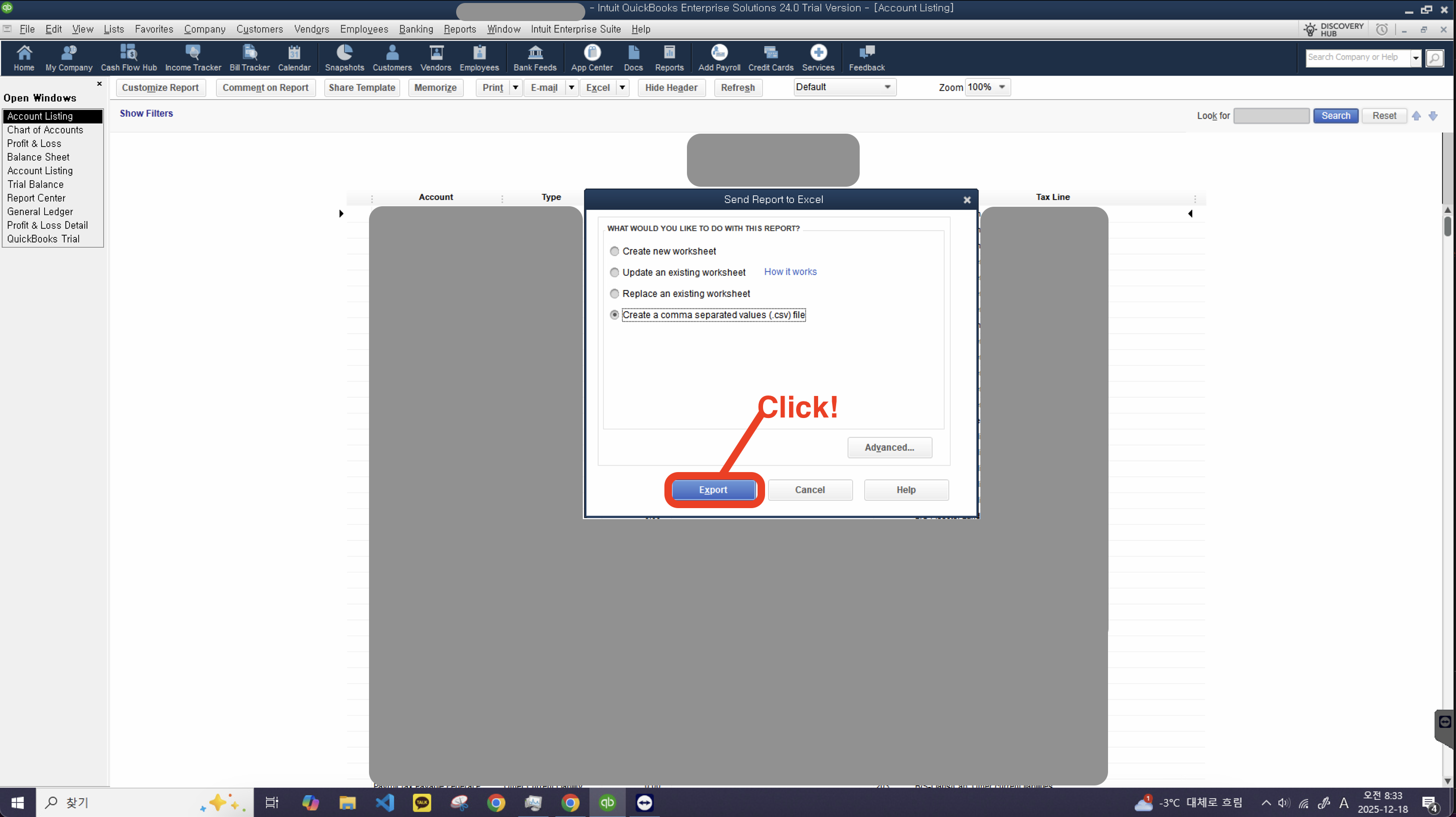
-
Choose your file name and where to save your Chart of Account csv file. That’s it!
While we recommend turning on account numbers in QuickBooks, don't worry if you haven't set them up. If account numbers are missing, Wesley will automatically generate and assign them for you during the import.
Journal
To migrate your transactions to Wesley, you need Journals of
1901-01-01 ~ end date you want. It sounds a little strange, but I really want you to extract your journal in1901-01-01 ~ end date you want. This is to ensure all journals are exported.
-
On Report Center, Search for
Journal -
Open Journal
-
Click
Customize Report -
Among Columns, Click
Adj,Class(If client uses Class) . This will enable Wesley to detect Adjs and Class. -
Click
OK -
Click
Create New Worksheet in Excel in Sub Menu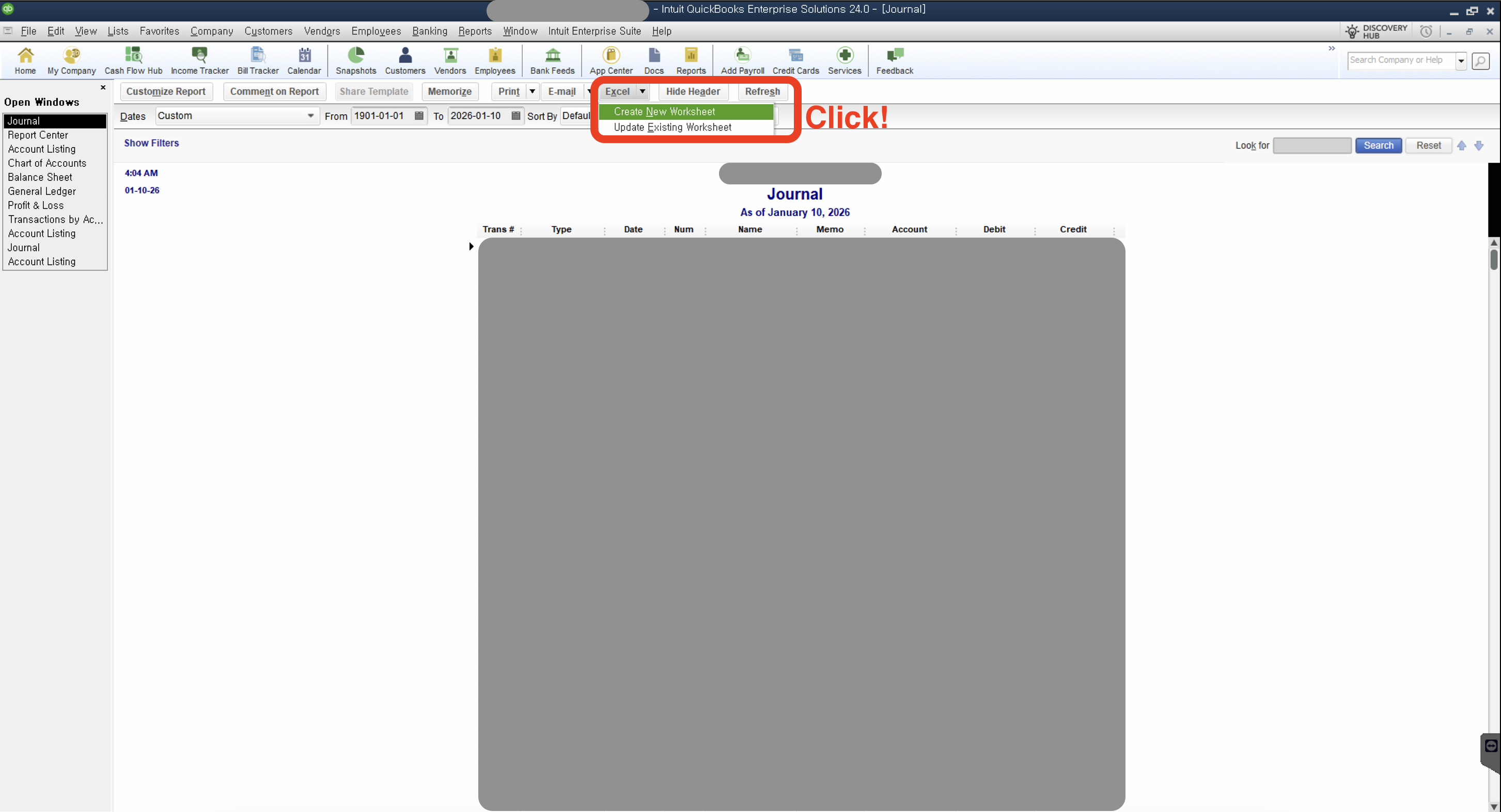
-
Click
Create new worksheet(in new workbook)This time, youmustexport in Excel file format.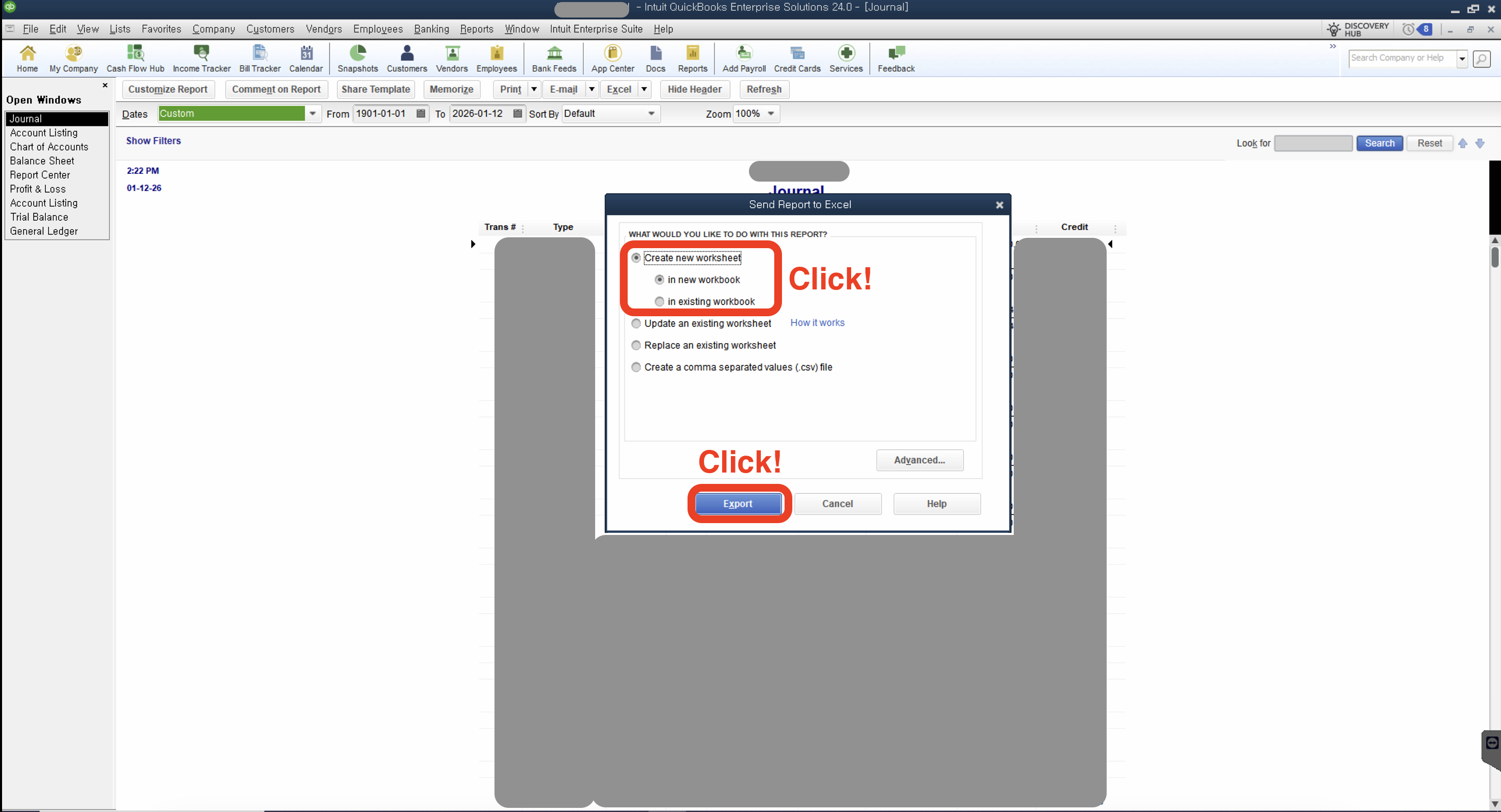
-
Click
Export. QBD usually takes around 5~10 minutes to process your request. Once again, please note that Journal file must be exported in .xslx(Excel) format. QBD truncates large csv files without notice, which usually is a cause of unbalanced journal entries.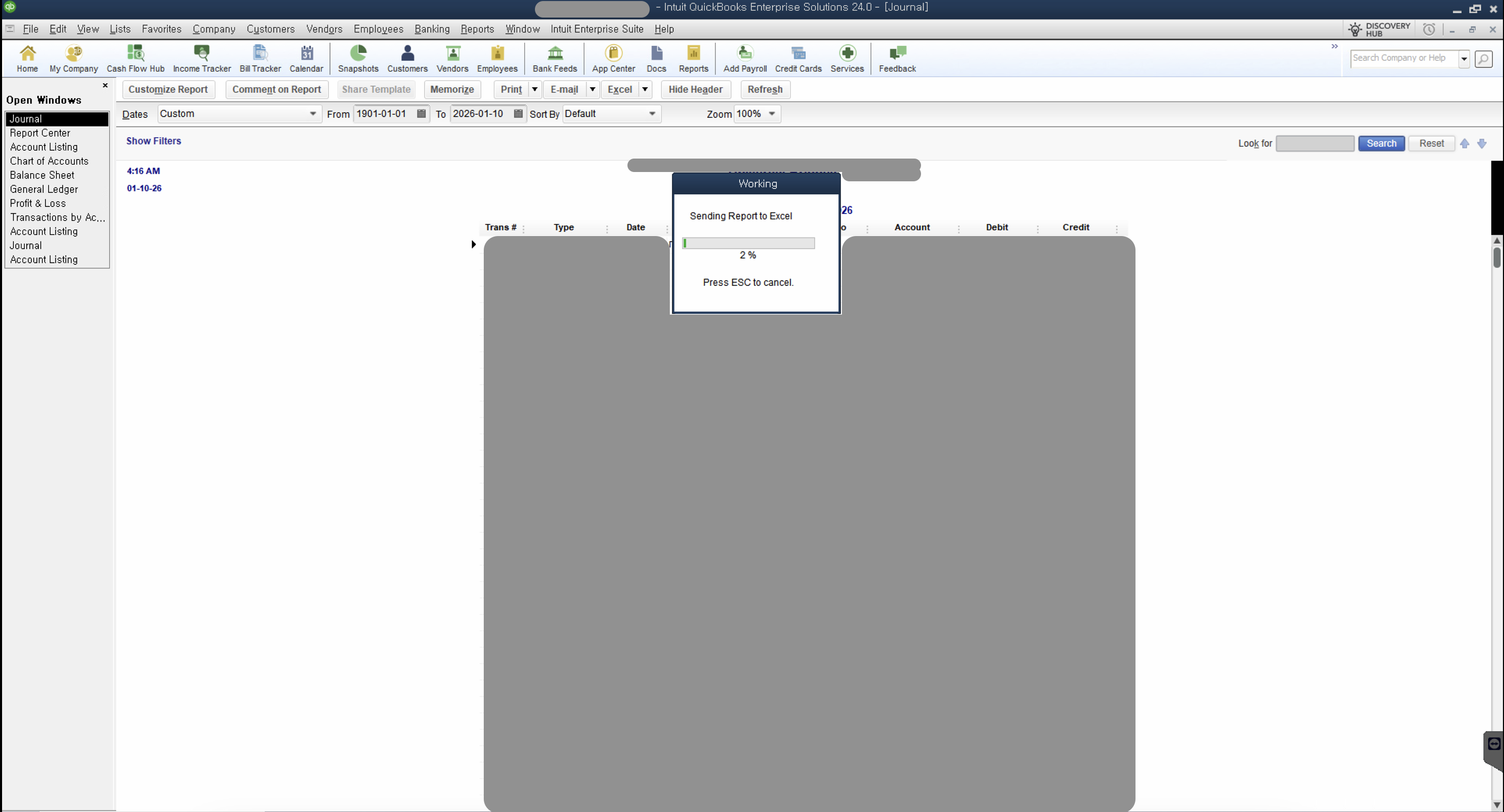
-
Choose your file name and save. That’s it!
Importing to Wesley
Once your
char of account&journalcsv files are prepared, you can import them to Wesley
-
Among accounting firm’s clients list, jump to the one you want to proceed with migration
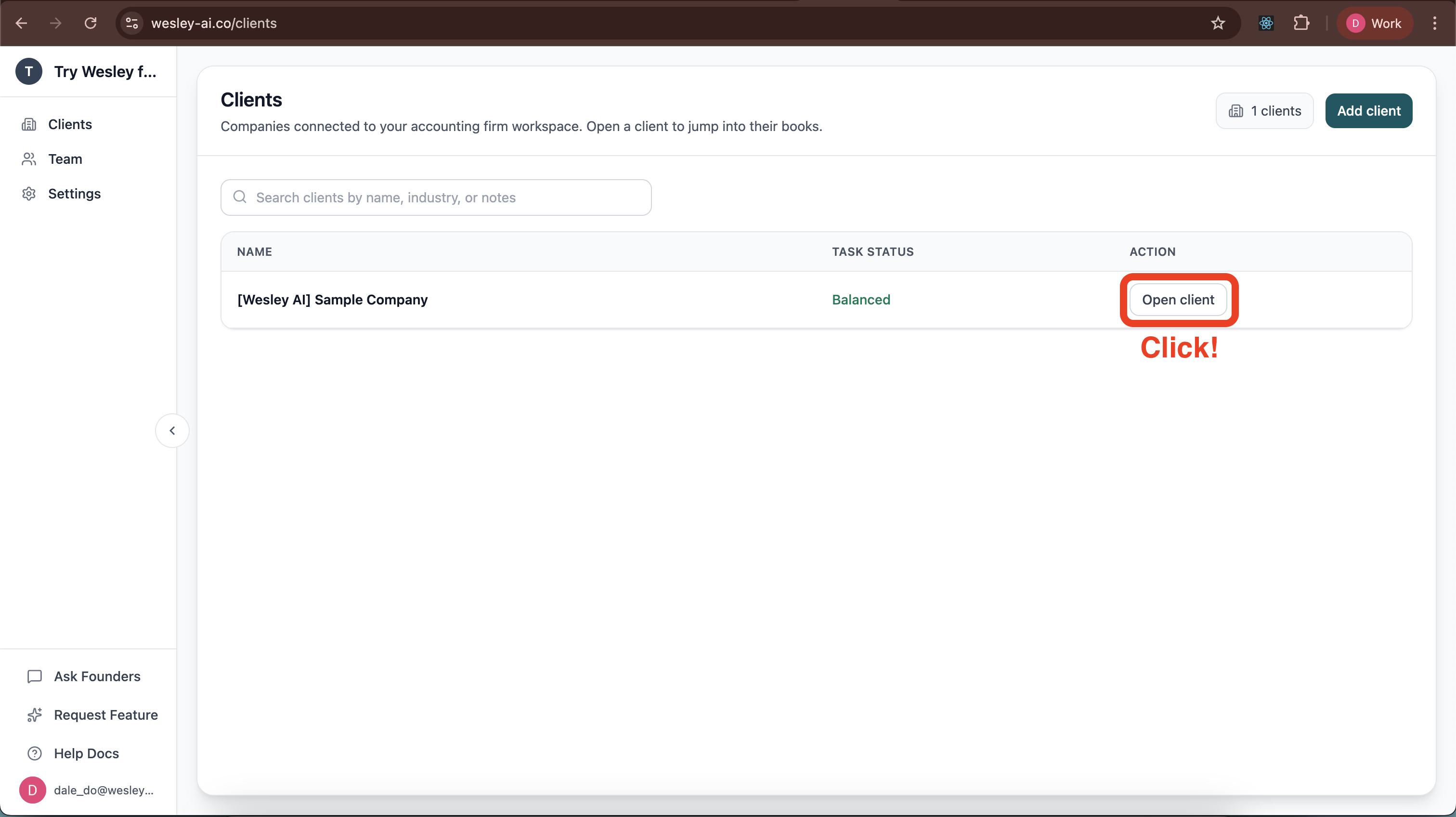
-
In Journals page, click
Import QuickBooks Desktop -
Upload Chart of Accounts and Journal and Proceed.
-
After a few seconds, you’ll see the result. If there is any error, feel free to reach out to us and we’ll take it from there.
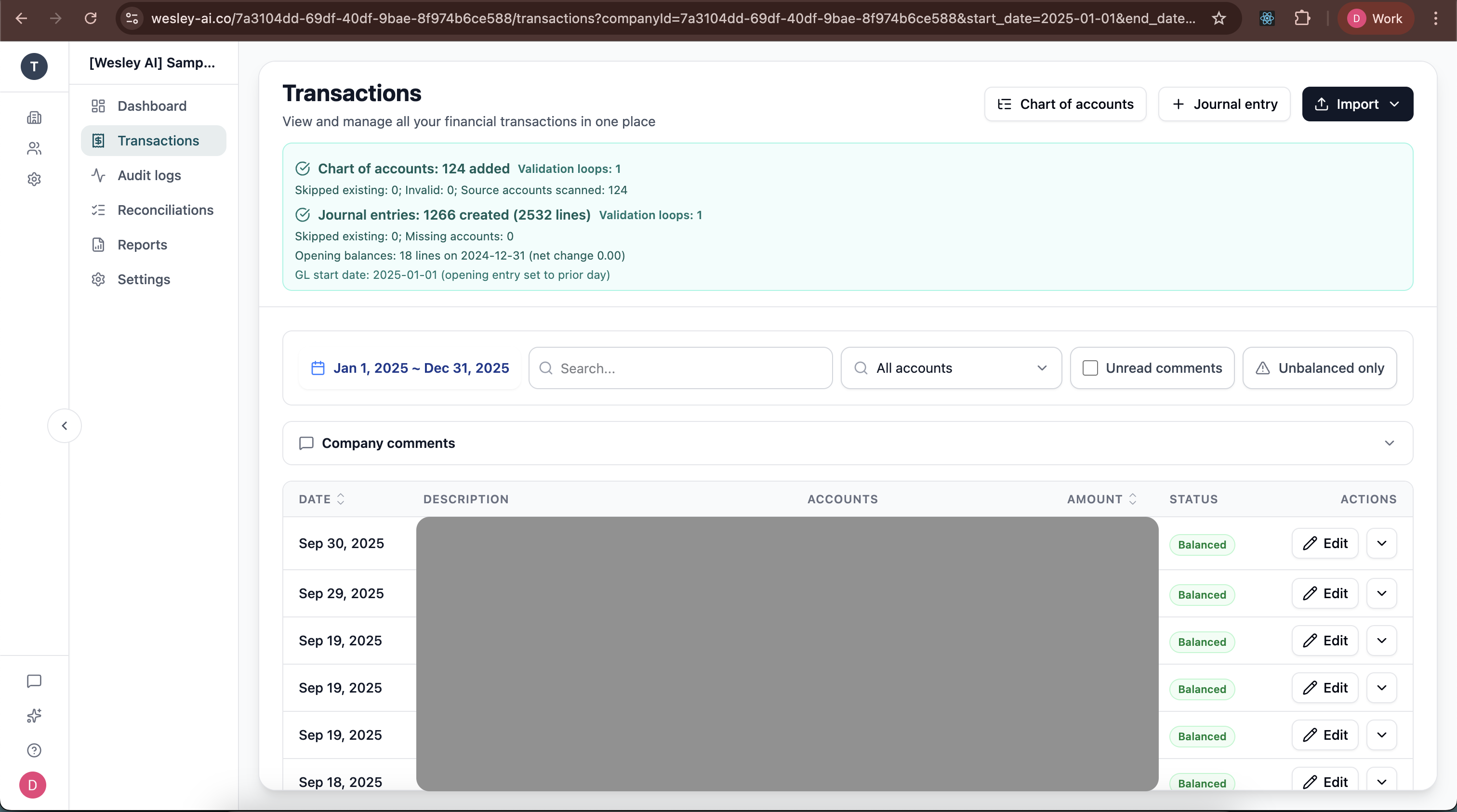
Pro-Tip: Date Ranges and Data Limits
There is no limit to the period of data you can import into Wesley.
- Import Everything at Once: You can export your entire history from QuickBooks Online in one go.
- No Need to Split Files: You do not need to break your data down by year or specific periods; Wesley is designed to handle multiple years of data in a single import.
Choose your workflow
Bank statement to QBD CSV
Prepare a QuickBooks Desktop-oriented CSV before the import step.
Import bank statements into QuickBooks Online
Use a PDF-first workflow that ends in a QBO-ready CSV for QuickBooks Online.
Bank statement to QBO
Convert statement PDFs into a QBO-ready CSV.
Bank statement conversion hub
The full cluster for PDF, CSV, OCR, and review-first statement workflows.
Import bank statements into QuickBooks Online
QBO upload path for PDF, image, QBO, QFX, and CSV statement files.
Coverage and resources
Open the authority pages that support this workflow.
QuickBooks Online Statement Import Prep
Use Wesley before QuickBooks Online when the source file is still a PDF statement, scanned statement, or messy CSV that needs review before import.
Open page →
Supported imports
See the downstream accounting destinations Wesley supports after review.
Open page →
QBO Import Prep Checklist
A QuickBooks Online import prep checklist for reviewers who want to confirm statement-derived files are clean before they hit the QBO bank import flow.
Open page →
Ready to use the matching workflow?
Bank statement to QBD CSV
Prepare a QuickBooks Desktop-oriented CSV before the import step.
Related reads
Discover adjacent articles without being sent to near-duplicate topics.

